Working with Media Types
The following default Media Types are available:
- Article - Used for uploading and storing documents.
- Audio - used for uploading and storing digital audio files.
- File - used for uploading and storing different types of files in the Media section.
- Folder - a container for organizing media items in the media tree.
- Image - used for uploading and storing images.
- Vector Graphics (SVG) - used for uploading and storing Scalable Vector Graphics files which are text files containing source code to draw the desired image.
- Video - used for uploading and storing video files.
Uploading a Media Item
In the Media Library, there are multiple ways to upload media items. The two most commonly used ones are:
-
Use the Create button to create a new media item and then upload directly from your machine.
-
The Upload field is available in every folder in the Media section, where you can drag and drop files or choose files to the desired location.

Important: Note:
We recommend using folders to organize your media items if you are going to add a lot of media to your website.
Deleting a Media Item
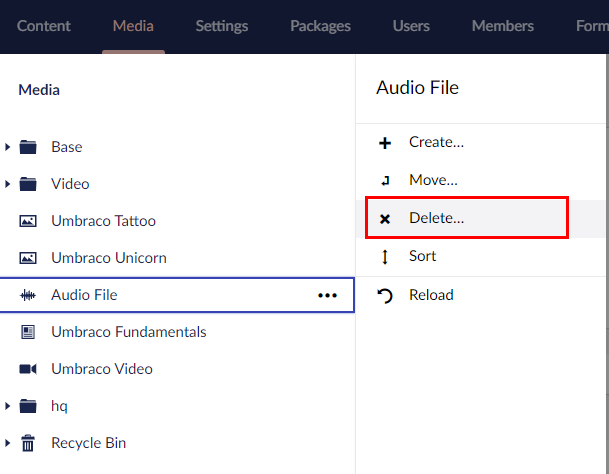
If you wish to tidy up the Media section of your site, you can delete existing media items. Once you have deleted a media item, it is sent to the Recycle Bin. If you change your mind, you can restore the deleted media item from the Recycle Bin.
To delete a Media Item:
-
Select the media item you want to delete.
-
Right-click the media item and select Delete.
-
Click OK.
-
Click OK to dismiss the confirmation message.
Restoring a Media Item from the Recycle Bin
The Recycle Bin is a separate tree structure within the Media section. Clicking on the arrow next to the Recycle Bin will display its contents.
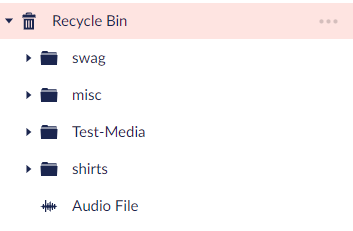
To restore a Media Item:
-
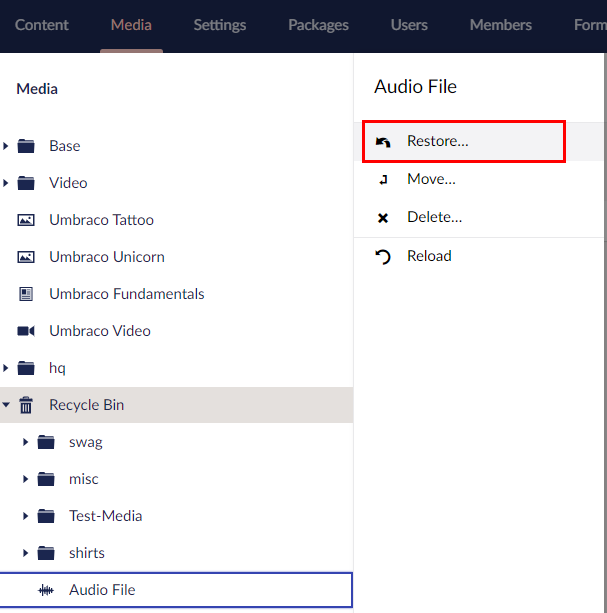
Click ••• next to the Media Item or right-click the Media Item you want to restore.
-
Select Restore.
-
Click Restore.
Moving an Image or File
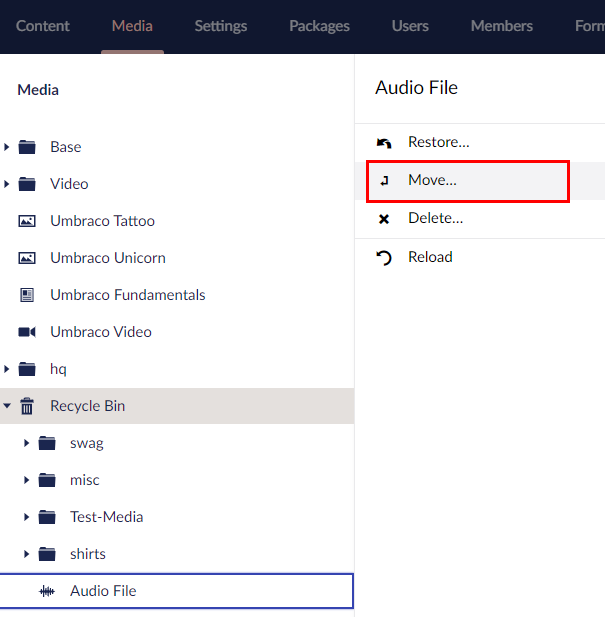
To move Media Items within the Media section:
-
Select the Media Item you want to move.
-
Right-click the Media Item and click Move.
-
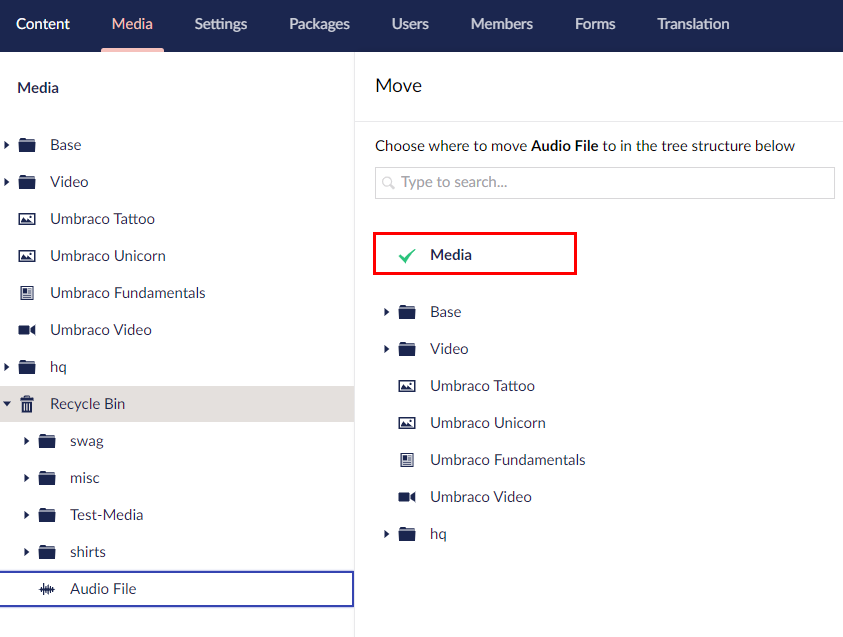
Choose the location where you want to move the Media Item to in the tree structure.
-
Click Move.
-
Click OK to dismiss the confirmation message.